The sole reason you need a comprehensive laptop buying guide for students and office professionals is that your livelihood and academic success often depend on that one machine. Whether you are searching for the best laptops for students or reliable business laptops for heavy office workloads, making the right choice is crucial. Your daily driver needs to be reliable, easy to use, and provide excellent value for your money.
This guide will help you navigate the most important laptop specifications, from selecting the right processor (CPU) and RAM for smooth multitasking, to finding the perfect balance of long battery life, fast SSD storage, and lightweight portability. By understanding these key features, you can confidently find an affordable laptop that perfectly matches your everyday needs without breaking the bank.
How to Choose the Best Laptop Processor in 2026
More often than not, most laptops in the affordable to mid-range segment, which is around Rs 60,000, are going to feature a multi-core processor with varying levels of power efficiency and performance. But it is fairly easy to understand what kind of processor you’re looking at through their naming scheme. For example, the Intel Core Ultra or the AMD Ryzen AI series in the Rs 60,000 segment offer a good mix of power, efficiency, and performance, including iGPU performance.
A good example of this is the AMD Ryzen AI 5 340 or the Intel Core Ultra 5 125U series chips. As you go below the Rs 60,000 price range, you will see laptops populated either with Intel 13th Gen chips or AMD Ryzen 7000 or 8000 series processors.
If you’re opting for Intel in the lower price range, then look for CPUs with an “H” suffix in their naming scheme, like the Intel Core i5-13420H, if you want a good performance CPU and can sacrifice a bit of battery life. However, if you lean towards efficiency, then go for Intel CPUs with a “U” suffix, like the Intel Core i3-1315U.
Similarly, AMD buyers who are strictly looking at high CPU performance should go for a laptop chip like the AMD Ryzen 5 5600H, and those looking towards high efficiency should opt for a laptop chip like the AMD Ryzen 5 5500U.
Moreover, core counts also change the way a chip performs. A laptop with an AMD Ryzen 7 7730U, an octa-core chip, is by default more power-efficient and offers better multi-core performance at a 15W TDP compared to the AMD Ryzen 5 5600H, a hexa-core CPU with a much higher TDP of 45W.
| Processor | Core Count | TDP | Cinebench R23 Multi-Core Score | Key Takeaway |
|---|---|---|---|---|
| AMD Ryzen 7 7730U | 8 cores | 15W | ~10,500 | More power-efficient, slightly better multi-core performance |
| AMD Ryzen 5 5600H | 6 cores | 45W | ~9,500 | Higher power draw, slightly lower performance |
But as you can see, it is not by a big margin. While the AMD Ryzen 7 7730U will score around 10,500 in Cinebench R23 multi-core tests, the Ryzen 5 5600H will score around 9,500 in the same test. The caveat here is that the chip with a higher core count and better efficiency is going to be more expensive.
How to Choose the Best Laptop GPU for Students and Office Work
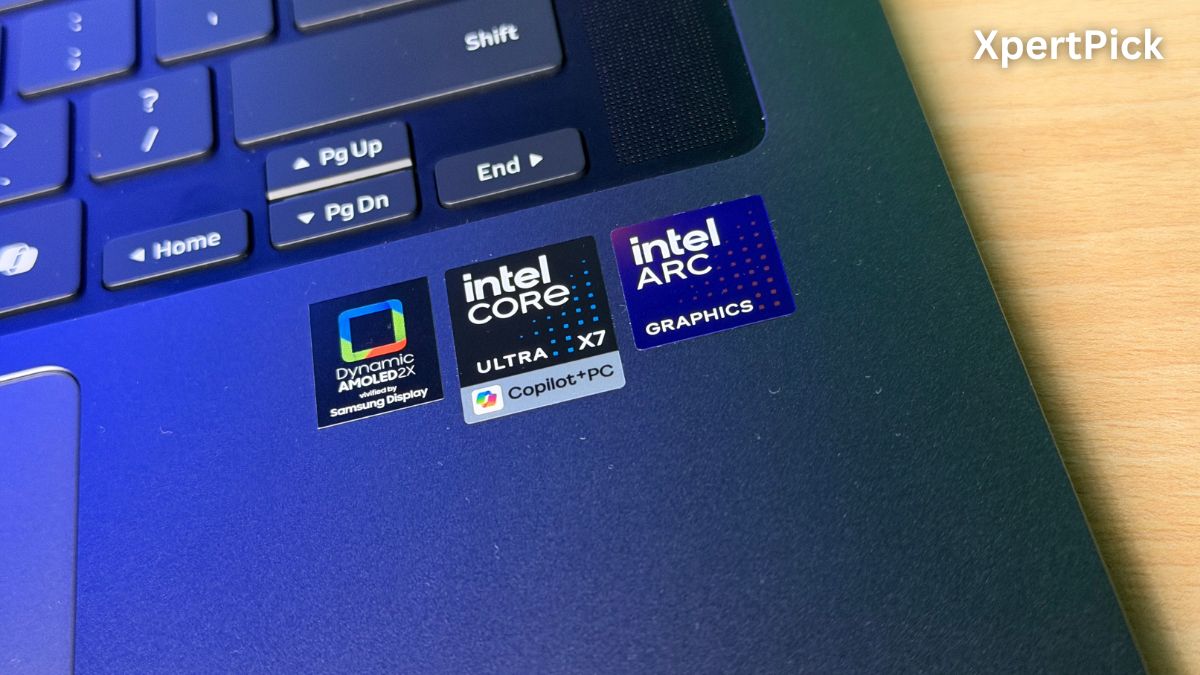
In this price range, you’re only going to get either an iGPU or a very entry-level dedicated GPU. But more often than not, it is going to be the former rather than the latter. iGPUs in this segment don’t differ much in performance. On the Intel side, the best iGPU you’re likely to get is the Intel Arc 130T GPU, and on the AMD side, you can get the Radeon 840M.
In both cases, you can play slightly older titles like GTA V, Shadow of the Tomb Raider, Dirt 5, and Assassin’s Creed Syndicate at around 50–60 FPS with low to medium graphics settings at a resolution of 720p.
As for the dedicated GPU option, in the Rs 60,000 price segment, you’re again likely going to see three main options. Either the Nvidia GeForce RTX 3050 with 4GB GDDR6 VRAM, the RTX 2050 with 4GB VRAM or the AMD Radeon 6500M with 4GB VRAM.
| GPU Model | 3DMark Time Spy Graphics Score |
| NVIDIA GeForce RTX 2050 (Mobile) | 3,460 |
| AMD Radeon RX 6500M | 4,659 |
| NVIDIA GeForce RTX 3050 (Laptop GPU) | 4,661 |
Between these choose anyone between the RTX 3050 and the Radeon 6500M. Just try to avoid going for the RTX 2050, as the performance difference between it and the other two cards is pretty significant.
How Much RAM and SSD Storage Do Students and Professionals Really Need?
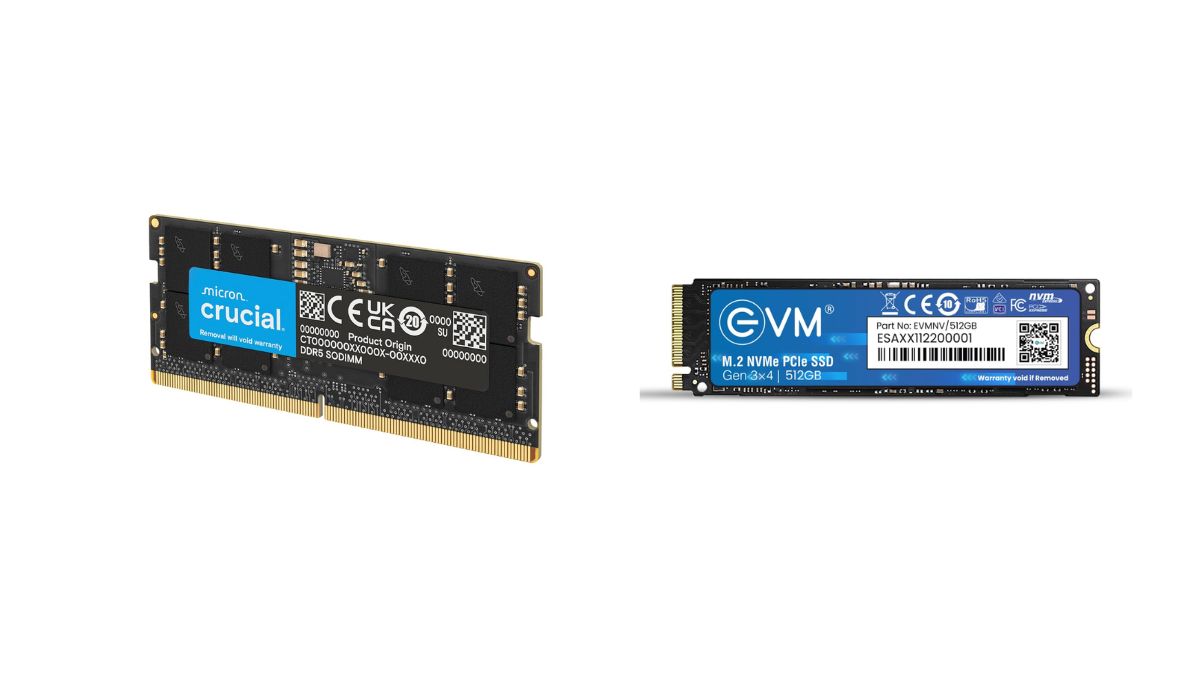
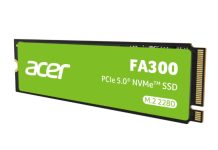
The standard for storage and memory in 2026 is 16GB RAM and 512GB SSD storage. More specifically, you’re looking for 16GB DDR5 RAM, which means your laptop either has one 16GB or two 8GB DDR5 RAM sticks. The memory types you need to avoid in this price range are DDR4, LPDDR4, and LPDDR4X.
| Drive Type | Interface | Typical Sequential Read | Typical Sequential Write | Random Read/Write (IOPS) | OS Boot Time |
| HDD | SATA III (7200 RPM) | 80 – 160 MB/s | 80 – 160 MB/s | ~50 – 120 | 30 – 45+ seconds |
| NVMe SSD | PCIe Gen 4.0 x4 | 5,000 – 7,500 MB/s | 4,400 – 7,000 MB/s | ~700,000 – 1,000,000+ | 6 – 10 seconds |
DDR4 is older, slower, and less efficient memory. While LPDDR4 and LPDDR4X can match the speed of newer DDR5 memory, they are soldered to the motherboard and cannot be upgraded. Same goes for the LPDDR5 and LPDDR5X memory, neither can be upgraded. So if you plan on going for the same, make sure you get more than 16GB for future-proofing, as you won’t be able to upgrade later.
For the storage, you’re looking for 512GB SSD storage. Do not go for the laptop if its specs say HDD or Hark Disk Drive, as these will be very slow and inefficient compared to SSDs.
Choosing the Right Laptop Display in 2026: Brightness, Colour Accuracy, and Panel Types
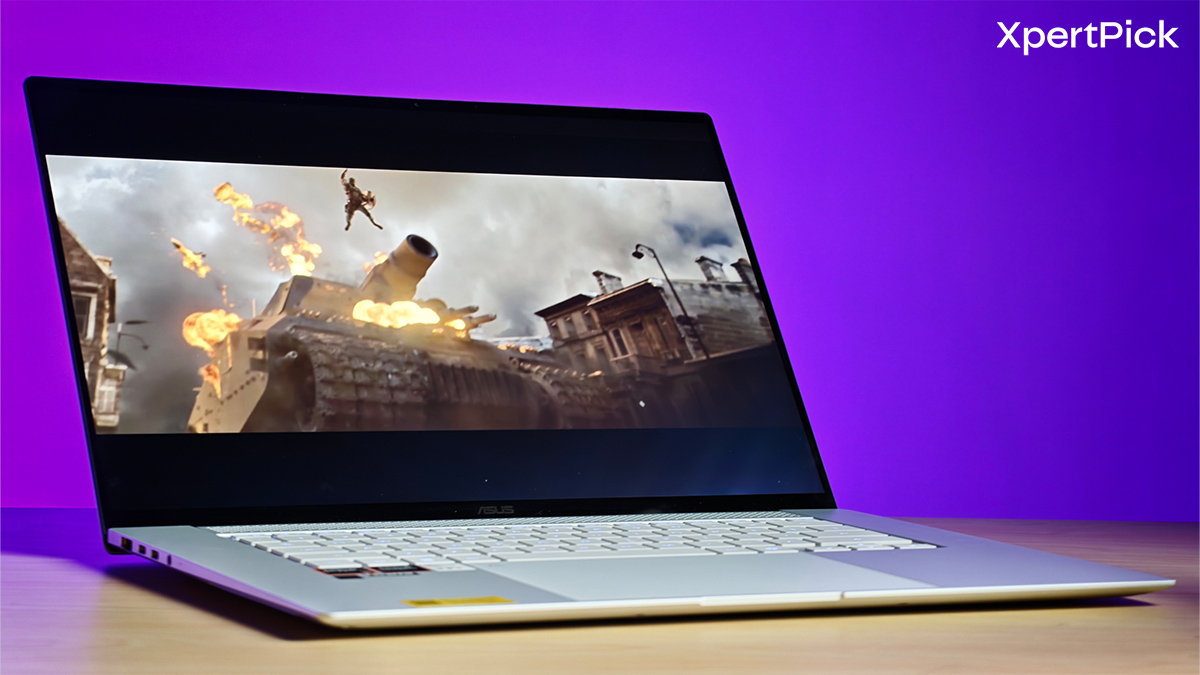
Choosing a display at this price point is straightforward: your best options are either an IPS LCD or an OLED panel. If you go with an IPS screen, keep two baseline specs in mind: it should have at least 300 nits of brightness and 100% sRGB colour coverage. Because most web content lives in the sRGB spectrum, hitting that 100% mark guarantees the colour accuracy required for photo editing, video production, and graphic design.
If you opt for an OLED display in the Rs 60,000 range, you can skip checking the sRGB specs as OLED panels cover 100% of it by default. Even better, they step up to the wider DCI-P3 colour space, giving you the exact colour accuracy needed to edit professional-grade footage and images.
Essential Laptop Ports for Students and Professionals in 2026
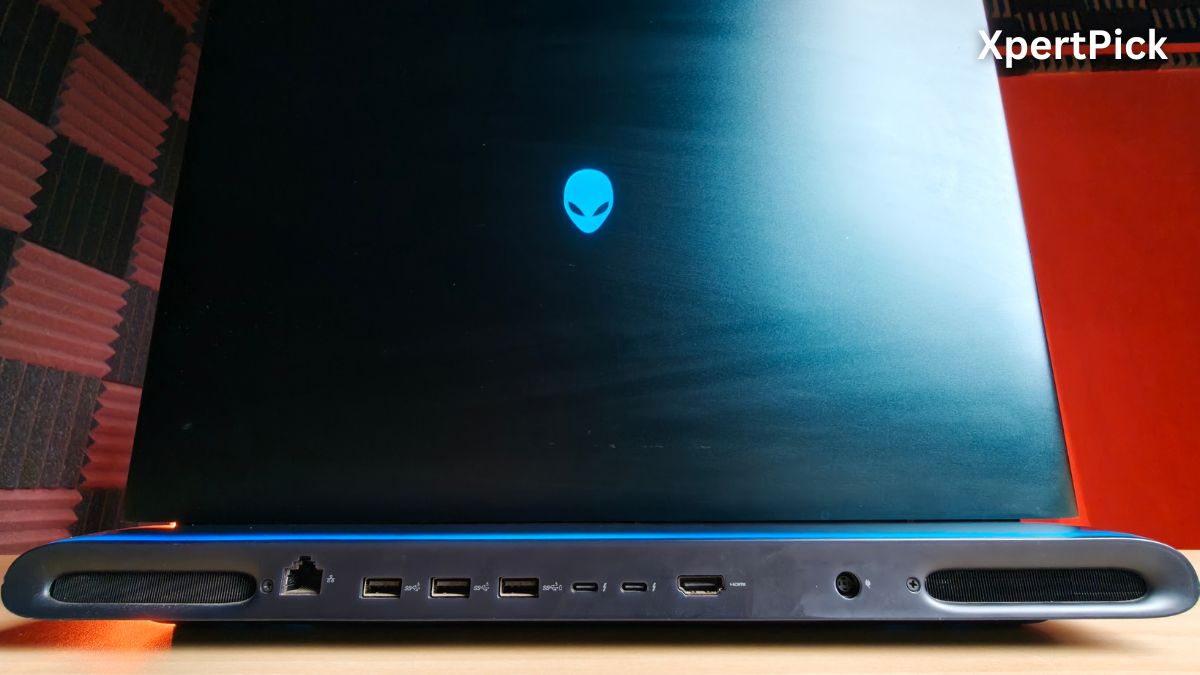
When you’re looking at laptops in this price range, port selection quietly becomes one of those things that can either make daily use smooth or constantly frustrating. There are a few essentials that really shouldn’t be compromised.
-
Full-Function USB Type-C: A basic, data-only Type-C port doesn’t cut it anymore. At this price point, your laptop must support Power Delivery (PD) for charging and DisplayPort Alt Mode for connecting external displays. Thunderbolt 4 is a fantastic bonus, especially on Intel machines, but a full-function Type-C port is the minimum baseline in 2026.
-
At Least Two USB Type-A Ports: We are still surrounded by legacy peripherals. Wireless mouse dongles, pen drives, and office printers still rely heavily on Type-A connections. Having at least two ports ensures you aren’t immediately reaching for an adapter the moment you sit at your desk.
-
HDMI (Ideally HDMI 2.1): A dedicated HDMI port makes plugging into a classroom projector or an office monitor seamless. While some budget models still ship with older HDMI 1.4 ports, look for HDMI 2.1 as it is crucial for pushing smoother refresh rates if you connect to a 4K display.
-
3.5mm Combo Audio Jack: It might feel old-school, but a standard headphone jack is incredibly reliable. A wired headset guarantees zero latency and zero Bluetooth connection drops.
The “Nice-to-Have” Ports Beyond the essentials, a few extra ports can make a noticeable difference depending on your specific workflow:
-
SD or MicroSD Card Reader: If you deal with photos or videos, this is a massive convenience. It pairs naturally with colour-accurate OLED laptops tailored for visual work.
-
RJ45 Ethernet Port: While slowly disappearing from thin-and-light laptops to save space, an Ethernet port is invaluable.
-
Kensington Lock Slot: It is basically used to anchor laptops to an immovable device and adds a layer of protection against theft. Not everyone needs one, but for students working in libraries or shared spaces, it adds a highly practical layer of physical security.
Final Tips for Buying a Work and College Laptop in 2026
This guide covers all the major points and would likely help guide you to buying the best possible laptop for your needs and budget. But there are still a few things to keep in mind before you splurge your money.
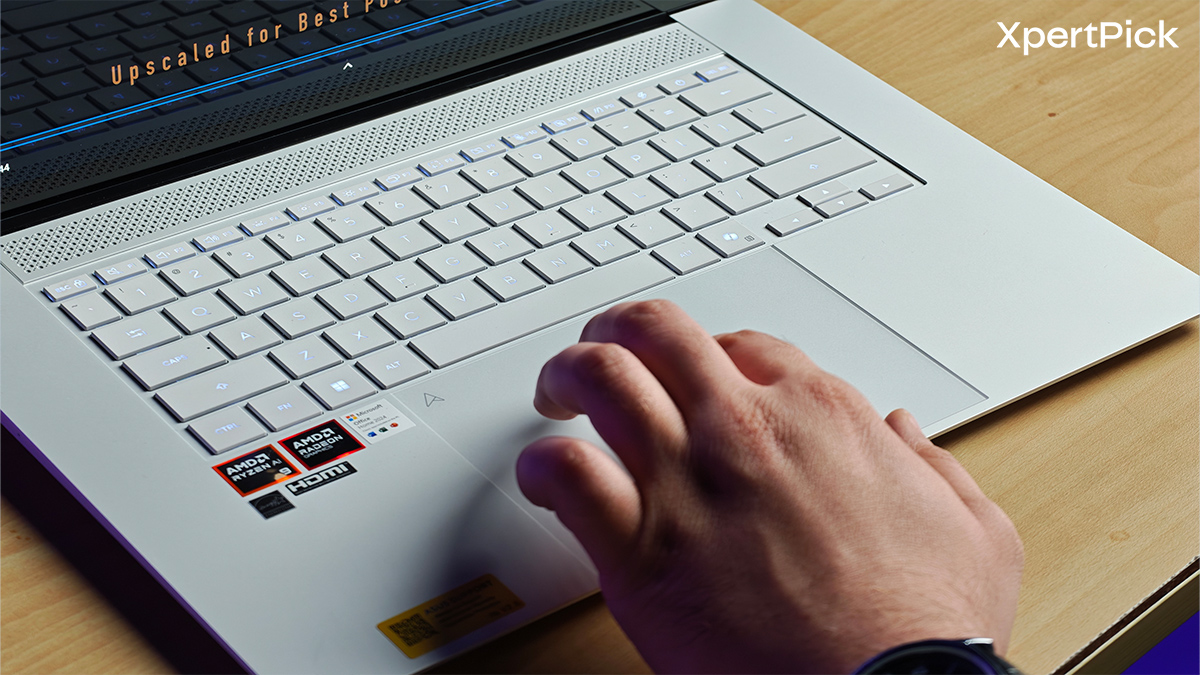
If your laptop has a numpad, or if you want to go for a laptop with a numpad, then chances are that your hand posture will be slightly tilted while typing. It may be a dealbreaker for some, but not for others.
Moreover, make sure that the touchpad size is decently large. You will be spending a lot of time using it, so having that extra space always helps.
The last thing to look for is a backlit keyboard. Although many manufacturers provide a keyboard backlight by default, some recent launches like the MacBook Neo do not offer one. Again, it might not be a dealbreaker for everyone, but if it is for you, then make sure to inquire about it before buying.